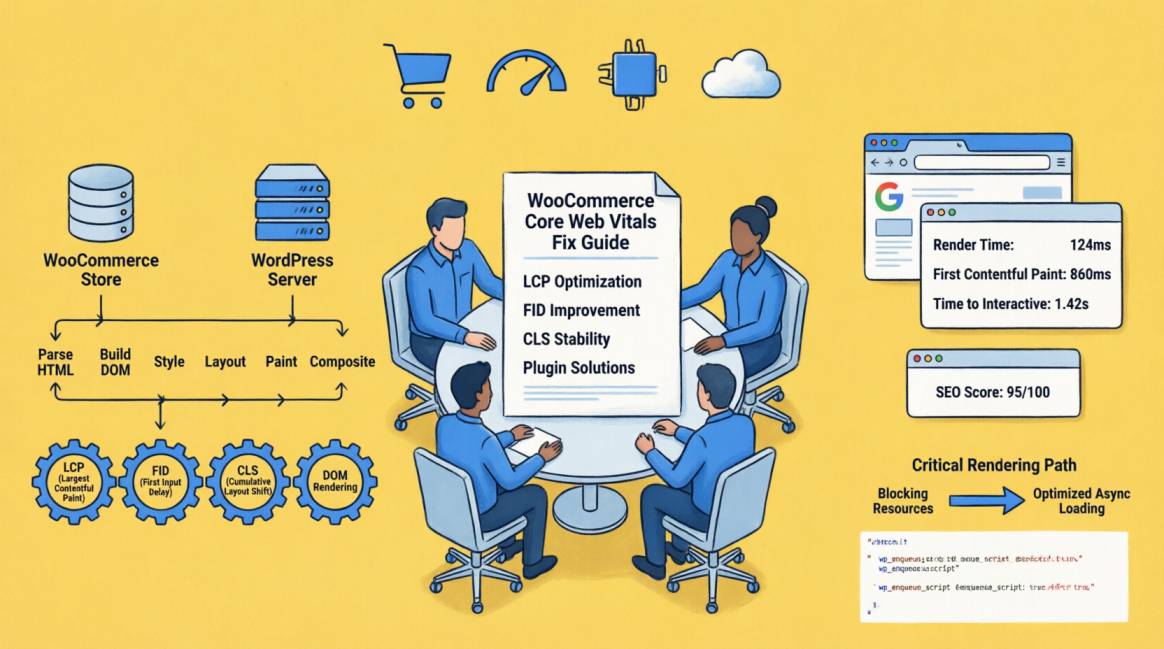
How to Fix WooCommerce Core Web Vitals Without a Developer — A Complete Plugin-Based Repair Guide

| 📋 Key Stats: |
|---|
| 3 — Core Web Vitals metrics — LCP, INP, and CLS — all required to pass for a 'Good' score |
| 53% — of users abandon a page that takes more than 3 seconds to load on mobile |
| 60–70% — TTFB reduction Cloudflare CDN delivers for Nigerian users accessing European/US-hosted WooCommerce stores |
| £0 — Cost of the most impactful CWV fix available: adding width and height attributes to product images |
Table of Contents
Table of Contents
Your WooCommerce Store is Probably Failing Core Web Vitals — Here's How to Fix it Without Touching a Line of Code
WooCommerce is one of the heaviest CMS configurations available. A default WooCommerce installation with 10–15 plugins, uncompressed product images, no caching, and a shared hosting server in Europe routinely scores below 30 on Google's PageSpeed Insights mobile test. The LCP is often 6–10 seconds. The INP can exceed 500 milliseconds. The CLS fluctuates between 0.15 and 0.35.
All of these are failing scores — and Google uses Core Web Vitals as a ranking signal. A WooCommerce store with consistently poor CWV scores is at a measurable competitive disadvantage against equivalent stores with 'Good' scores, especially on mobile-first indexing where Nigerian users primarily access e-commerce sites.
The good news: every common WooCommerce CWV failure has a plugin-based fix that does not require developer involvement. Cloudflare's free CDN resolves most TTFB issues in under 30 minutes. ShortPixel's starter options convert all product images to WebP automatically (they offer a limited free tier, though a budget-friendly paid plan is highly recommended for bulk-optimizing your initial inventory). WP Rocket's JavaScript deferral typically reduces INP by 50–70%. Adding width and height attributes to images resolves most CLS issues in under an hour via plugin settings.
This guide continues from where the WooCommerce technical SEO stops, covering all six most common WooCommerce Core Web Vitals failures — what causes each one, the specific plugin-based fix for each, how to diagnose whether the fix worked, and the target score to achieve. It is written for WooCommerce store owners who want to fix their CWV scores without waiting for a developer.
📌 What This Guide Covers
- What Core Web Vitals are and why they matter specifically for WooCommerce stores
- The six most common WooCommerce CWV failures — each with a no-developer, plugin-based fix
- The five tools that do the heavy lifting: Cloudflare, WP Rocket, ShortPixel, LiteSpeed Cache, and Query Monitor
- How to measure your CWV scores before and after fixes — and what 'Good,' 'Needs Improvement,' and 'Poor' mean
- The Nigerian hosting context: why your server location is the single biggest CWV variable for African WooCommerce stores
- The complete CWV fix checklist: work through it in order and your scores will improve
What Are Core Web Vitals and Why Do They Matter for WooCommerce?
The Three Metrics Defined
1. LCP (Largest Contentful Paint): measures how quickly the largest visible content element loads — on most WooCommerce product pages, this is the main product image or the page H1. Target: under 2.5 seconds on mobile.
Most common causes on WooCommerce: uncompressed hero images and slow server response time from distant hosting.
2. INP (Interaction to Next Paint): measures how quickly the page responds to user interactions (clicks, taps) throughout the session. Replaced FID as a Core Web Vitals metric in March 2024. Target: under 200 milliseconds.
Most common cause on WooCommerce: JavaScript bloat from multiple plugins executing on every page load.
3. CLS (Cumulative Layout Shift): measures visual instability as the page loads — elements jumping as images, banners, or cookie consent popups appear. Target: under 0.1.
Most common cause on WooCommerce: images without explicit width/height attributes and cookie consent banners injecting content above existing elements.
Why WooCommerce Specifically Struggles
WooCommerce adds substantial JavaScript and CSS to every page load — from WooCommerce core, from each installed plugin, and often from the theme. A store with 20 installed plugins (common in WooCommerce) may load 15+ JavaScript files and 8+ CSS files before the user sees any product content. Each file is a network request. Each network request adds latency. On a Nigerian mobile connection with variable 4G speeds, this load produces page experiences that fail every Core Web Vitals threshold.
The hosting geography problem compounds this: most Nigerian WooCommerce stores are hosted on shared servers in Germany, the UK, or the US. Network latency from these locations to Nigerian users adds 150–400 milliseconds to every resource request before any content is delivered. A CDN — specifically Cloudflare's free tier — is the fastest single fix available.
The Six Common WooCommerce CWV Failures and Their No-Developer Fixes
| Issue | No-Developer Fix (Step-by-Step) | How to Diagnose It | Target Score |
|---|---|---|---|
| LCP — Hero Image Loading Too Slowly | #1. Convert hero/banner image to WebP via Squoosh.app (free, browser-based — no developer needed). Target: under 80KB at display size. #2. In WordPress Admin → Media: use ShortPixel or Smush plugin (free) to auto-convert all new uploads to WebP and compress existing images. #3. In Rank Math or your SEO plugin: enable image lazy-loading for all below-fold images. #4. In Cloudflare (free account): enable Polish (image optimisation) and Minify for CSS/JS/HTML. | PageSpeed Insights mobile test. LCP must appear on a product image or H1 — if it flags a different element, that element becomes your fix priority. | < 2.5s (Good). 2.5–4.0s (Needs Improvement). >4.0s (Poor). Most unoptimised WooCommerce stores score 5–9s. |
| LCP — Slow Server Response (High TTFB) | #1. Sign up for Cloudflare (free). Add your domain, change nameservers at your registrar, enable Cloudflare proxy. This alone reduces TTFB from 800–1400ms (European/US server) to 200–400ms for Nigerian users. #2. Install WP Rocket or LiteSpeed Cache. Enable: Page Caching, Browser Caching, and modern file compression (like Brotli or Gzip) to shrink the physical size of your code transfer. #3. In your hosting control panel: enable server-side caching if available (cPanel → LiteSpeed Cache, or similar). | PageSpeed Insights → Diagnostics → 'Reduce initial server response time'. Also: test TTFB from a Nigerian location using tools.pingdom.com. | TTFB target: under 600ms. Cloudflare typically reduces TTFB by 60–70% for African users accessing European/US-hosted sites. |
| INP — Slow JavaScript Execution | #1. In WP Rocket: Settings → Performance → Delay JavaScript Execution → Enable 'Delay JS'. This defers non-critical JavaScript until after the user's first interaction. #2. Deactivate unused plugins: go to Plugins → Installed Plugins. Deactivate any plugin not actively in use. Each plugin adds JS overhead even when inactive on the page. #3. In WooCommerce → Settings → Advanced → WooCommerce.com: disable any unused WooCommerce extensions. #4. Switch to WooCommerce block-based cart and checkout (lighter than legacy shortcode versions). | PageSpeed Insights → Diagnostics → 'Reduce JavaScript execution time'. Chrome DevTools → Performance panel (record a page session, click on the Interactions track to expand it, and identify interactions with high latency or long animation frames). | INP target: under 200ms. Common WooCommerce stores with 15+ plugins score 400–800ms before JS deferral is applied. |
| CLS — Layout Shift From Images | #1. Add explicit width and height attributes to every product image in your WooCommerce theme. In most themes: Appearance → Customize → or via your page builder's image settings. #2. ShortPixel/Smush: enable 'Add Missing Image Dimensions' in plugin settings — automatically adds width/height attributes to images missing them. #3. For WooCommerce product gallery images: Check your theme's customizer settings or product layout options to ensure product gallery cropping is enabled. If your layout is still missing dimensions, instead of digging into theme PHP code, let ShortPixel's 'Add Missing Image Dimensions' setting handle it automatically on the frontend. | PageSpeed Insights → Diagnostics → 'Avoid large layout shifts'. CLS score shown in the Core Web Vitals section at the top. | CLS target: under 0.1. Image-caused CLS is the most common WooCommerce CLS source — usually resolved completely by adding width/height attributes. |
| CLS — Cookie Consent Banner Jump | #1. Configure your cookie consent plugin (CookieYes, Complianz, or similar) to use a bottom-bar format rather than a full-page overlay. Bottom bars cause less CLS than overlaying popups. #2. In your cookie plugin settings: enable 'Reserve space for banner' or 'Prevent layout shift' option if available. #3. Alternatively, use Cloudflare Zaraz to offload third-party tracking scripts to the cloud, ensuring heavy scripts don't delay your site's initial paint while your banner loads. | PageSpeed Insights → click 'View Treemap' to identify which elements are causing CLS. Cookie banner elements appear as shifts in the top of the layout. | CLS from cookie banners typically adds 0.05–0.25 to the CLS score. Combined with image CLS, stores easily exceed the 0.1 threshold. |
| General — Render-Blocking Resources | #1. In WP Rocket: Settings → File Optimisation. Enable 'Minify CSS Files' and 'Minify JavaScript Files', but leave both 'Combine' settings unchecked. Modern HTTP/2 and HTTP/3 networks deliver separate minified files faster and without layout compilation risks. #2. Remove unused CSS: In WP Rocket: Settings → File Optimisation → CSS Files → Enable 'Remove Unused CSS'. WP Rocket will automatically process your pages in the background to strip out bloated, unused code on your product and category layouts — significant improvement on product and category pages. #3. Google Fonts: in WP Rocket → Settings → Media → Google Fonts: enable 'Optimise Google Fonts Loading' to reduce font render-blocking. | PageSpeed Insights → Opportunities → 'Eliminate render-blocking resources'. Lists specific CSS and JS files causing blocking. | Eliminating render-blocking resources typically improves LCP by 0.5–1.5 seconds and reduces overall page weight by 30–50%. |
The Five Tools That Fix WooCommerce Core Web Vitals
| Plugin / Tool | Cost | What It Does | How to Configure It |
|---|---|---|---|
| Cloudflare (CDN + Performance) | Free (Pro: $20/month) | Global CDN reducing TTFB by 60–70% for Nigerian users. Automatic image optimisation (Polish), minification, and browser caching. Single most impactful performance change for any WooCommerce store. | Sign up at cloudflare.com → Add site → Change nameservers at registrar → Enable Cloudflare proxy (orange cloud) for your domain → Enable Polish under Speed → Optimisation |
| WP Rocket | $59/year | The most comprehensive WordPress caching and performance plugin. Page caching, browser caching, CSS/JS minification, JavaScript deferral, LazyLoad, database optimisation, Google Fonts optimisation. | Settings → Performance: enable Page Cache. Settings → File Optimisation: enable Minify CSS/JS and Delay JS. Settings → Media: enable LazyLoad for images and iframes. |
| ShortPixel Image Optimiser | Free (first 100 images/month); $9.99/month unlimited | Bulk converts all existing images to WebP, compresses new uploads automatically, adds missing width/height attributes, integrates with WooCommerce gallery images. | Plugins → ShortPixel → Bulk Compress existing images → Enable Auto-Optimise new uploads → Enable WebP delivery → Enable 'Resize large images' |
| LiteSpeed Cache | Free | Server-side caching for stores on LiteSpeed servers (common in many hosting plans). Includes CSS/JS optimisation, image lazy loading, and database cleaning. Free alternative to WP Rocket for compatible hosting. | LiteSpeed Cache → General → Enable Cache. CSS/JS Settings → Minify and combine. Image Optimisation → Enable Lazy Load. |
| Query Monitor | Free (diagnostic tool) | Identifies slow database queries, PHP errors, and plugin performance issues. Run on staging to find which plugins add the most page generation overhead before deactivating them on your live site. | Install → Visit any frontend page → Query Monitor toolbar appears → Click 'Queries' to see slow database calls → Click 'Scripts' to see which plugins load the most JavaScript |
How to Measure Your Scores Before and After Fixes
Step #1 — Establish Your Baseline
Before making any changes, record your current scores in PageSpeed Insights (pagespeed.web.dev). Test your: (1) Homepage, (2) Most visited category page, (3) Most visited product page. For each, run the Mobile test (not desktop — Google's ranking signals are mobile-first). Record: LCP (seconds), INP (milliseconds), CLS (decimal), Overall Performance Score (0–100), and the specific 'Opportunities' and 'Diagnostics' items listed.
This baseline gives you: the specific issues to prioritise (PageSpeed Insights prioritises them by estimated impact), the before score to compare against after fixes, and a record of which specific issues were present if scores do not improve as expected.
Step #2 — Fix in Order of Impact
Address fixes in this order for maximum improvement per hour invested: (1) Cloudflare CDN — install first, test after. This single change typically improves LCP by 1–3 seconds for Nigerian users and improves the Overall Performance Score by 15–30 points before any other changes. (2) Image compression to WebP — install ShortPixel and run bulk compression. This typically improves LCP by a further 1–2 seconds. (3) Caching plugin — install WP Rocket or LiteSpeed Cache. This improves TTFB, LCP, and INP simultaneously. (4) JavaScript deferral (WP Rocket → Delay JS). This typically improves INP by 50–70%. (5) Image width/height attributes (ShortPixel → Add Missing Dimensions). This resolves most CLS issues.
Step #3 — Verify in Search Console, Not Just PageSpeed
PageSpeed Insights shows lab data — simulated scores from a controlled test environment. Google's actual CWV assessment for ranking purposes comes from field data — real user experiences reported by Chrome users visiting your site. This field data appears in Google Search Console → Experience → Core Web Vitals.
The field data assessment takes 28 days to update after you make changes. This means: implement your fixes, verify improvement in PageSpeed Insights immediately, then wait 28 days for Search Console to reflect the field data improvement. If your PageSpeed score improved significantly but Search Console still shows 'Poor' after 28 days, there is a real-user experience issue not captured in the lab test — typically slow hosting performance during peak traffic periods.
Nigerian WooCommerce Hosting Context
The single biggest Core Web Vitals variable for Nigerian WooCommerce stores is server location. Most affordable WooCommerce hosting is located in Europe (Germany, UK) or the US. A user in Lagos accessing a server in Germany sends their request across 5,000+ miles of network infrastructure before receiving the first byte of data — a round-trip latency of 150–300 milliseconds before a single pixel is rendered.
Multiply this by every resource your WooCommerce page loads (15+ JavaScript files, 8+ CSS files, 20+ product images) and you understand why Nigerian users see LCP scores of 6–10 seconds on stores that score 2.5 seconds for users in Europe.
The Cloudflare Solution
Cloudflare's free CDN resolves this without changing your hosting. When Cloudflare is active, your static assets (images, CSS, JavaScript) are cached at Cloudflare's edge locations — including the Lagos, Nairobi, and Johannesburg edge nodes. Nigerian users receive these assets from a nearby server rather than from Germany. This typically reduces TTFB from 800–1400ms to 200–400ms for Nigerian users, and reduces total page load time by 40–60%.
Setup: cloudflare.com → Add site → enter your domain → select Free plan → copy the two nameserver addresses → go to your domain registrar (Namecheap, GoDaddy, etc.) → DNS settings → replace existing nameservers with Cloudflare's. DNS propagation takes 24–48 hours. After propagation, enable the orange cloud (proxy) for your A record in Cloudflare's DNS settings.
Nigerian Hosting Alternatives
If you want to eliminate the CDN latency entirely, consider hosting on servers geographically closer to Nigeria. Options with localized African infrastructure: Cloudflare Workers (serverless, edge-computed), cloud providers utilizing South African data centers (like AWS Cape Town or Teraco), or localized infrastructure providers like Rack Centre Lagos for the lowest possible local TTFB. For high-traffic WooCommerce stores, Nigerian-hosted or African-CDN-served infrastructure can achieve sub-100ms TTFB for Lagos users.
WooCommerce CWV Fix Checklist
| PHASE 1 — CDN AND SERVER (DO THIS FIRST) | |
|---|---|
| ☐ | Sign up for Cloudflare free account → add your domain → update nameservers at registrar → wait 24–48 hours for propagation |
| ☐ | In Cloudflare: Speed → Optimisation → Content Optimisation → Enable Auto Minify (CSS/JS/HTML) and Brotli compression. (Note: If you upgrade to Cloudflare Pro, you can also toggle on 'Polish' for instant, automated image optimization directly at the edge). |
| ☐ | Test PageSpeed Insights after Cloudflare is active. Record new LCP, INP, CLS scores. This is your post-CDN baseline. |
| ☐ | Expected improvement: LCP typically improves by 1–3 seconds for Nigerian users. Overall Performance Score typically increases by 15–30 points. |
| PHASE 2 — IMAGE OPTIMISATION | |
|---|---|
| ☐ | Install ShortPixel Image Optimiser → Settings → enable WebP delivery → enable 'Resize large images' (max width: 1200px for product images) → enable 'Add Missing Image Dimensions' |
| ☐ | ShortPixel → Bulk Compress: compress all existing images. For 200-product stores this may take 30–60 minutes to process. Run it, leave the browser tab open. |
| ☐ | Verify product hero image is under 80KB after compression: WooCommerce → Media → check your main product image file size |
| ☐ | In your SEO plugin or theme: confirm all product images have lazy loading enabled (loading='lazy' attribute) for below-fold images |
| ☐ | Expected improvement: LCP typically improves by a further 1–2 seconds. CLS improves as missing image dimensions are added. |
| PHASE 3 — CACHING AND JAVASCRIPT | |
|---|---|
| ☐ | Install WP Rocket ($59/year) or LiteSpeed Cache (free for LiteSpeed servers) → enable Page Caching → enable Browser Caching |
| ☐ | In WP Rocket: Settings → File Optimisation. Enable Minify CSS and Minify JS, but leave 'Combine' disabled to prevent breaking WooCommerce layout dependencies. Modern HTTP/2 networks handle multiple minified files perfectly without combination conflicts. |
| ☐ | WP Rocket → Media: enable LazyLoad for images and iframes. Enable 'Replace YouTube iframe with preview image' |
| ☐ | Plugin audit: Plugins → Installed Plugins → deactivate any plugin not actively in use. Remove (not just deactivate) unnecessary plugins entirely |
| ☐ | Test PageSpeed Insights after Phase 3 changes. INP should be approaching target (<200ms). LCP should be under 2.5 seconds. |
| ☐ | Expected improvement: INP typically reduces by 50–70%. LCP improves further from caching. Overall Performance Score should be approaching 60–80 on mobile. |
| PHASE 4 — CLS AND VERIFICATION | |
|---|---|
| ☐ | Confirm all product images have explicit width and height attributes (ShortPixel 'Add Missing Dimensions' should have handled this in Phase 2 — verify on PageSpeed Insights) |
| ☐ | Cookie consent plugin: set to bottom-bar format rather than full-page overlay. Enable 'reserve space' or 'prevent layout shift' in plugin settings |
| ☐ | Test CLS specifically: PageSpeed Insights → click 'View Treemap' → identify any remaining layout shift elements |
| ☐ | Google Search Console → Experience → Core Web Vitals: set 28-day calendar window from after your fix implementation. Monitor for improvement in field data. |
| ☐ | Target scores after all four phases: LCP < 2.5s, INP < 200ms, CLS < 0.1. Overall PageSpeed mobile score 60+. Search Console CWV: 'Good' status for majority of pages within 28 days of fixes. |
Wrapping it up…
Good Core Web Vitals Are Achievable Without a Developer
WooCommerce Core Web Vitals failures feel technical and intimidating. They are not. Every common failure mode documented in this guide has a plugin-based fix that takes under two hours to implement and requires no code changes.
The complete fix sequence — Cloudflare CDN → ShortPixel image compression → WP Rocket caching and JS deferral → image width/height attributes — typically moves a failing WooCommerce store from a PageSpeed mobile score of 20–35 to a score of 60–80. This is the difference between a store that is measurably penalised by Google's CWV ranking signals and one that is neutral-to-advantaged relative to competitors who have not addressed their performance.
Run PageSpeed Insights on your homepage, top category page, and top product page right now. Record your scores. Work through the four phases in Section 6. Test again in 48 hours. The improvement will be measurable — and the ranking benefit will be confirmed in your Search Console Core Web Vitals report within 28 days.
📋 Summary: Woocommerce Core Web Vitals Fixes Without a Developer
- Three CWV metrics: LCP (< 2.5s — largest element load time), INP (< 200ms — interaction response time), CLS (< 0.1 — layout stability). All three must pass for 'Good' status.
- Six common WooCommerce failures: slow hero image, high TTFB (server response), JS execution bloat (INP), image-caused CLS, cookie banner CLS, render-blocking resources.
- The five tools: Cloudflare (free CDN — biggest single impact), WP Rocket ($59/year — caching + JS deferral), ShortPixel (free — WebP compression + image dimensions), LiteSpeed Cache (free alternative to WP Rocket), Query Monitor (free diagnostic).
- Fix order for maximum impact per hour: (1) Cloudflare CDN, (2) ShortPixel image compression, (3) Caching plugin, (4) JavaScript deferral, (5) Image width/height attributes, (6) Cookie banner format.
- Nigerian context: server location is the single biggest CWV variable. Nigerian users accessing European-hosted stores see 150–400ms additional latency. Cloudflare CDN reduces this to 20–60ms by caching assets at African edge nodes.
- Measurement: PageSpeed Insights for immediate lab data (test before and after each phase). Search Console → Core Web Vitals for real-user field data — updates 28 days after fixes are implemented.
Frequently Asked Questions
Questions readers ask about this topic
The FAQs below are pulled directly from this article's structured content and are designed to help readers quickly find answers to common questions related to the topic.
My PageSpeed score is 25/100. Which fix will make the biggest difference first?
I installed WP Rocket and my site broke. What happened?
My Core Web Vitals improved in PageSpeed Insights but Search Console still shows 'Poor.' Why?

Founder, Technical Analyst
Oladoyin Falana is a certified digital growth strategist and full-stack web professional with over five years of hands-on experience at the intersection of SEO, web design & development. His journey into the digital world began as a content writer — a foundation that gave him a deep, instinctive understanding of how keywords, content and intent drive organic visibility. While honing his craft in content, he simultaneously taught himself the building blocks of the modern web: HTML, CSS, and React.js — a pursuit that would eventually evolve into full-stack Web Development and a Technical SEO Analyst.
Follow me on LinkedIn →